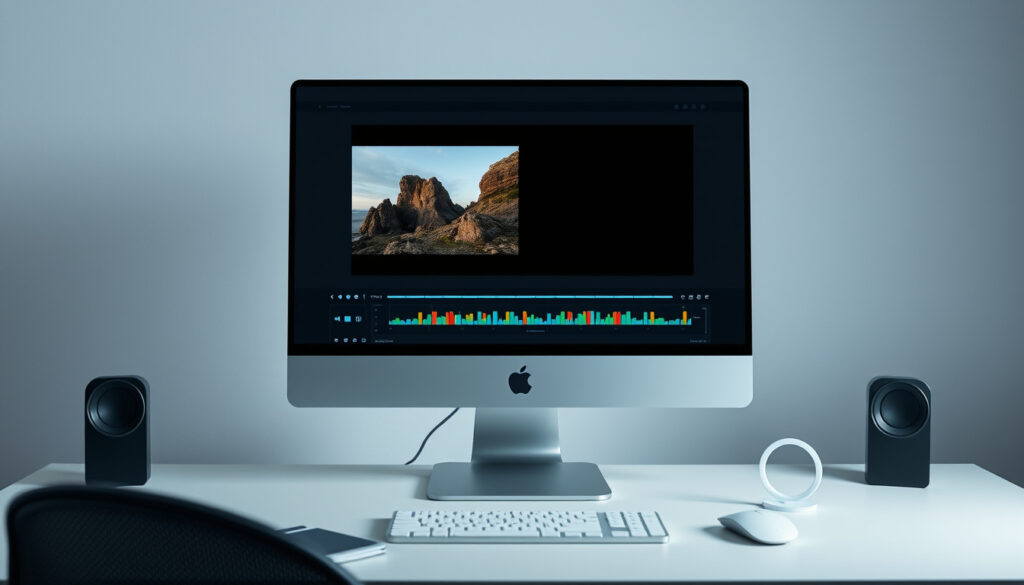
How to Make a GIF from Video – Step-by-Step 2025 Guide
How to Make a GIF from a Video (Complete 2025 Guide)
Converting video footage into animated GIFs has become an essential skill for content creators, marketers, and casual users alike. Whether you want to highlight a moment from a longer recording, create engaging social media content, or add visual interest to a presentation, understanding how to transform video into GIF format opens up creative possibilities. This guide covers the most effective methods across desktop computers, mobile devices, and web-based platforms, along with optimization techniques that ensure your final animations look professional while remaining practical for web use.
The process involves selecting the right tool for your skill level and platform, extracting a short segment from your video, adjusting technical settings like frame rate and resolution, and exporting the final product. Each approach offers distinct advantages depending on whether you prioritize speed, visual quality, or technical control over the output.
How Do I Make a GIF from a Video? (Step-by-Step Guide)
The fundamental process follows a consistent pattern across most tools: upload your video, select the segment you want to convert, adjust visual and technical parameters, and download the result. Understanding this core workflow helps you adapt quickly regardless of which platform or software you choose.
Online tools complete the process in under a minute, with no software installation required.
Built-in apps like GIPHY offer instant creation directly from your camera roll.
Adobe Photoshop provides frame-by-frame control for polished professional results.
Ezgif and Kapwing allow unrestricted creation without watermarks or account requirements.
Key Technical Insights
- GIF files typically work best when kept between 2 and 10 megabytes for smooth web playback
- Optimal clip length ranges from 5 to 15 seconds; anything longer risks rejection by social platforms
- A frame rate of 15 to 30 frames per second provides the best balance between smoothness and file size
- Compressing early in the editing process prevents quality degradation during multiple save cycles
- Standard resolution of 480p or lower maintains visual clarity while minimizing file bloat
- Most modern tools automatically enable seamless looping for continuous playback
- Testing on your target platform before finalizing saves time on revisions
| Method | Platform | Cost | Quality | Time Required |
|---|---|---|---|---|
| Online Tools | All browsers | Free | Good | Under 1 minute |
| Mobile App | iOS/Android | Free | Medium | Instant |
| Canva | Browser/Mobile | Free tier | Good | 2-5 minutes |
| FreeConvert | Browser | Free | Good | 1-3 minutes |
| GIPHY | Browser/App | Free | Good | Under 2 minutes |
| Ezgif | Browser | Free | Good | 2-5 minutes |
| Adobe Express | Browser | Free tier | Good | 2-4 minutes |
| Photoshop | Desktop | Subscription | High | 10-30 minutes |
Best Free Online Tools to Convert Video to GIF
Web-based converters eliminate software downloads and work seamlessly across any operating system with a browser. These platforms range from beginner-friendly drag-and-drop interfaces to more advanced tools with granular control over technical settings.
Canva: Visual Design Focus
Canva prioritizes aesthetic appeal and design consistency, making it ideal for creators who want visually polished animations without extensive editing knowledge. The platform allows you to upload videos up to several minutes in length, trim clips to your desired duration, adjust size and playback speed, add text overlays, and apply design templates that maintain brand consistency. The workflow involves opening Canva’s GIF Maker, uploading your video file, selecting and trimming the segment you want to convert, customizing the visual settings, and downloading the result in GIF format.
FreeConvert: Technical Control
FreeConvert appeals to users who need precise control over file size and technical parameters. The platform handles video uploads up to 1 gigabyte, offers frame rate adjustment and compression options, and provides trimming, resizing, and cropping tools. This combination makes it particularly useful when preparing GIFs for platforms with strict upload limits or when you need to balance quality against distribution requirements.
GIPHY: Social Media Integration
GIPHY offers a straightforward free alternative with built-in editing capabilities specifically designed for social sharing. The process requires creating or signing into an account, uploading your video, trimming the clip and adjusting start and end times, adding effects or text annotations, setting visibility to public or private, and either downloading the result or sharing directly to connected social platforms. The tight integration with major social networks simplifies the workflow for those primarily distributing content through channels like Twitter, Discord, or messaging apps.
Ezgif: Advanced Customization
Ezgif functions as a free online editor with advanced customization options for users who need more granular control. The platform includes video trimming, size and quality adjustment sliders, frame rate control, text and sticker additions, and a dedicated GIF optimizer that compresses files without significant quality loss. This combination of features makes Ezgif particularly valuable for technical users preparing animations for professional contexts.
Adobe Express: Beginner-Friendly Approach
Adobe Express provides a streamlined free online GIF maker supporting videos up to 1 gigabyte. The interface guides users through selecting output sizes labeled as Large, Medium, or Small, trimming video segments as needed, previewing the animation before finalizing, and downloading the completed result. This guided approach reduces the learning curve for first-time creators while maintaining access to reasonable technical options.
Choose Canva for visual consistency, FreeConvert for technical precision, GIPHY for social distribution, Ezgif for advanced editing options, and Adobe Express for straightforward beginner workflows. Each platform serves different priorities.
How to Make GIFs from Video on iPhone or Android
Mobile devices offer the most convenient creation pathway since most people capture video on phones anyway. Both major mobile operating systems support dedicated applications that transform camera roll footage into animated GIFs with minimal friction.
iPhone Creation Process
GIPHY’s mobile application provides a streamlined iPhone workflow. After launching the app, tap the central “+” icon to access your camera roll, select the video you want to convert, and use the trim handles to set your desired start and end points. The bottom editing panel offers options for adding captions, adjusting playback speed, and applying filters. Once satisfied with the result, tap the “Share GIF” button to save to your photo library or distribute directly to social platforms. Alternative approaches include using the “Video to GIF” Siri Shortcut, which can automate the conversion process for users who create GIFs frequently.
Android Creation Process
Android users access comparable functionality through GIPHY’s app with the same core feature set. The application supports trimming, caption additions, sticker overlays, and filter applications directly on mobile devices. The workflow mirrors the iPhone experience, ensuring consistency for creators working across multiple device types or collaborating with users on different platforms.
Mobile apps typically produce medium-quality results suitable for social sharing but may lack the precision controls available in desktop applications. For professional deployments requiring optimal quality, consider desktop alternatives even if the initial creation happens on mobile.
Desktop Software for Creating High-Quality GIFs from Video
Desktop applications provide the most comprehensive control over the conversion process, making them the preferred choice for professional work or when the highest possible quality is essential. These tools typically require more technical knowledge but reward invested time with superior results.
Adobe Photoshop: Professional Standards
Adobe Photoshop represents the professional standard for GIF creation, offering frame-by-frame control that enables precise adjustments impossible in web-based tools. The application requires importing video frames and assembling them into animated sequences, with full access to Photoshop’s complete image editing toolkit throughout the process. A 7-day free trial allows new users to evaluate the workflow before committing to a subscription. The steeper learning curve compared to browser-based alternatives reflects the significantly greater capabilities available.
Ezgif Web Interface: Desktop Convenience
Ezgif’s web interface works equally well on desktop systems, letting you upload video files or enter video URLs, trim to your desired section, adjust size and frame rate parameters, then convert and save without installing any software. This approach combines the technical precision of dedicated tools with the accessibility of browser-based platforms, making it useful for users who want more control than basic online tools provide without committing to professional software subscriptions.
Professional tools like Photoshop produce superior results but require significantly more time and technical skill. For quick social content, online tools typically suffice. Reserve desktop software investment for projects where quality differences materially impact outcomes.
Tips for High-Quality, Optimized GIFs from Video
Technical optimization determines whether your GIFs perform well across different platforms and loading conditions. Understanding these principles helps you create animations that look professional while remaining practical for web distribution.
Ideal Length and File Size
Keeping GIFs between 2 and 6 seconds optimizes for most use cases, with longer clips risking playback lag or outright rejection by platforms with upload limits. The target file size of 2 to 10 megabytes ensures smooth web playback without excessive load times that frustrate viewers or hurt search rankings. When working with longer source material, trimming to the most compelling moment rather than including entire sequences typically produces better engagement.
Frame Rate Optimization
Frame rates between 15 and 30 frames per second provide the best balance between animation smoothness and file size economy. Lower frame rates reduce file sizes but can introduce stuttering that looks unprofessional, while higher rates quickly balloon file sizes without proportional visual improvement. Tools like FreeConvert and Ezgif allow precise frame rate adjustment to hit your specific targets.
Compression Strategies
Compressing early in your workflow prevents quality degradation that accumulates through multiple save cycles. FreeConvert’s built-in compression options control final file size while maintaining playback smoothness, and Ezgif includes a dedicated GIF optimizer that aggressively reduces file complexity without visible quality loss. Testing your optimized GIF on the target platform before finalizing prevents discovering issues after distribution.
Resolution Guidelines
Standard resolution of 480 pixels or lower maintains visual clarity for most viewing contexts while keeping file sizes manageable. Higher resolutions quickly exceed practical limits for animated formats, making downscaling the preferred approach for all but specialized professional applications where viewers control their own zoom.
What Works Reliably and What Remains Uncertain
Understanding which aspects of GIF creation are well-established versus which remain variable helps set realistic expectations and avoid frustrating surprises during the creation process.
| Established Approaches | Variable Factors |
|---|---|
| All major tools convert reliably | Output quality varies by tool capability |
| Short clips (under 15s) work universally | Platform acceptance criteria differ |
| Web browsers support GIF format fully | Mobile app quality inconsistent |
| Compression reduces file size predictably | Quality loss from compression varies |
Why Make GIFs from Video? Use Cases and Technical Limits
GIFs serve distinct purposes that make them valuable despite the availability of video formats, with understanding of these use cases informing better creation decisions.
Social sharing represents the most common application, with GIFs often outperforming video links in engagement metrics on platforms like Twitter, Reddit, and Discord. The automatic looping behavior eliminates the need for viewers to press play, while the absence of audio makes them appropriate for contexts where sound would be disruptive. Marketing professionals frequently use GIFs to highlight product features, demonstrate quick processes, or add personality to brand communications without the production overhead of polished video content.
Technical constraints shape practical use significantly. The GIF format does not support audio, limiting utility for content where sound carries essential information. Pixel limitations mean GIFs work best for short, simple animations rather than complex footage with fine visual detail. These constraints are not flaws but rather characteristics that define appropriate applications, similar to how understanding a tool’s capabilities guides its effective use.
What Tool Documentation Says About GIF Creation
“Upload and trim in seconds. GIPHY makes it simple to take any video clip and transform it into a format ready for instant sharing across your favorite platforms.” — GIPHY Creator Tools Documentation
“Frame-by-frame control enables precise timing adjustments that web tools cannot match. For professional animation work, desktop software provides the control necessary to achieve consistent, repeatable results.” — Adobe Creative Cloud Documentation
Final Thoughts on Making GIFs from Video
The abundance of free, capable tools has democratized GIF creation to the point where anyone with video footage and a few minutes can produce shareable animated content. Starting with online tools like Canva, FreeConvert, or GIPHY provides a low-risk introduction to the workflow, with desktop applications available for situations requiring greater precision or quality. For those interested in related digital signage topics, our Video Wall Digital Signage Singapore – Providers, Costs and Installation Guide explores how animated content integrates into larger visual communication strategies.
Success with GIF creation ultimately depends on matching tool capabilities to project requirements. Quick social posts benefit from the speed of mobile apps, while marketing campaigns requiring brand consistency might justify Canva’s design templates. Professional applications calling for precise technical control favor desktop software, whereas casual personal use rarely needs anything beyond free browser tools. Understanding these trade-offs enables confident tool selection regardless of experience level.
Frequently Asked Questions
What is the best app to make GIFs from videos?
GIPHY offers the most accessible mobile experience with straightforward trimming and sharing features. Canva provides better design tools for visually polished results, while FreeConvert offers technical control for users who need precise file management.
How do I make a GIF from a video online for free?
Visit Canva, FreeConvert, Ezgif, or Adobe Express, upload your video file, select and trim your desired segment, adjust quality and size settings, and download the result in GIF format. All these platforms offer free tiers with no watermarks.
Can I make a GIF from a video on Mac?
Yes. Browser-based tools work identically on Mac systems, or you can use desktop applications like Photoshop for more advanced control. The same conversion process applies regardless of operating system.
How do I reduce GIF size from video?
Compress early by reducing resolution to 480p or lower, lower frame rate to 15-20 FPS, trim clips to under 10 seconds, and use the GIF optimizer tools in Ezgif or FreeConvert to remove unnecessary frame data.
How long can a video be for converting to GIF?
Source videos can be any length, but output clips work best between 2 and 6 seconds. Longer GIFs may be rejected by social platforms, load slowly, or display playback problems.
What’s the easiest way to turn video into GIF?
GIPHY’s mobile app offers the lowest friction workflow: open the app, select your video, trim to length, and save. Browser alternatives like Canva provide similar simplicity with additional design options.
How do I make a high-quality GIF from video?
Use desktop software like Photoshop for maximum control, or select high-quality settings in Canva or FreeConvert if desktop software seems excessive. Key factors include adequate resolution, smooth frame rates, and minimal compression.
Best software for video to GIF on PC?
Adobe Photoshop offers the most comprehensive feature set, while Ezgif provides a capable browser-based alternative. FreeConvert balances technical options with accessibility for users who do not need professional capabilities.
More related posts
 Slot Gacor Wow388: Verified Info & User Questions (2025)
 Best Tarta de Acelga Near Me – Step-by-Step Recipe Guide
 Cast of Weak Hero Class 1: Full List, LGBTQ, Strength Rankings
 Minimum Sum CPF 2025: BRS, FRS & ERS Explained (Official)
 Dr Liew Woei Kang: Paediatric Allergy Immunology Expert
 Asian Civilisations Museum Photos: Gallery, Guide & Tips
 How to Organize Desk Drawers: Step-by-Step Guide
 What Is MediShield Life – Singapore’s Basic Health Insurance Guide