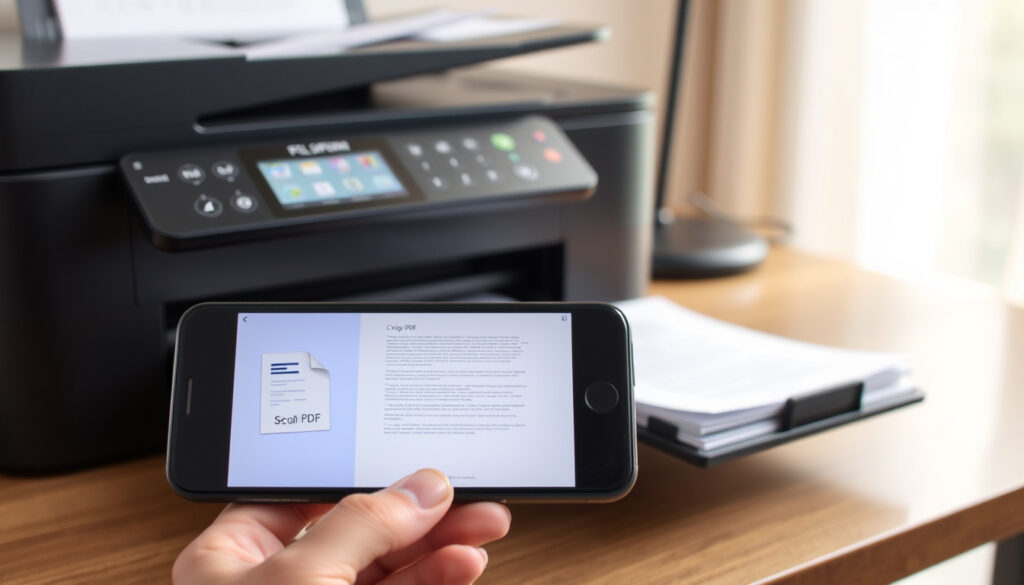
How to Scan Documents to PDF: Free Phone & Printer Guide
If you’ve ever needed to email a signed contract, archive a receipt, or share a handwritten note with someone across the country, you already know how valuable it is to turn paper into PDF. The good news: you don’t need a dedicated scanner. Your phone, your printer, and even your browser can all do the job. This guide walks through every free method, step by step, so you can pick the one that fits your setup.
Top Free Apps: Adobe Scan, Google Drive · Mobile Platforms: Android, iPhone · Common Methods: Phone camera, Printer scanner · Output Format: Searchable PDF
Quick snapshot
- Adobe Scan is completely free to download and creates searchable PDFs (Adobe)
- Google Drive on Android includes a built-in scanner at no extra cost (YouTube Tutorial)
- OCR accuracy comparisons between apps are not publicly available
- Premium feature pricing for freemium apps varies and changes frequently
- Scanner apps like CamScanner have been on the market since before 2026 (Google Play Store)
- AI-powered features in free scanner apps are a recent expansion in the space (Google Play Store)
- More scanner apps are adding AI summarization and text extraction at no cost
- Browser-based scanning tools require no installation and keep improving
Multiple free scanning methods span mobile apps, built-in OS tools, printer software, and web-based services. The table below compares the most accessible options by platform and cost.
| Method | Platform | Cost |
|---|---|---|
| Adobe Scan | iPhone, Android | Completely free |
| Google Drive | Android | Free to use |
| PDFgear Scan | iPhone, Android | Completely free, ad-free |
| Mopria Scan | Android | Free |
| Document Scanner | Android | Free with ads |
| Windows Scan | Windows 10/11 | Built-in |
Is there a free way to scan to PDF?
Yes, and you have more options than you might expect. The most popular free methods use your phone’s camera through dedicated apps or built-in tools.
Adobe Scan app steps
- Download Adobe Scan from the Adobe website or your app store.
- Open the app and point your camera at any document. The app automatically detects edges.
- Adobe Scan uses AI to correct perspective, sharpen text, and remove shadows (Adobe).
- Tap the checkmark to save. The OCR feature converts the scan into a fully searchable PDF (Adobe).
- Choose to save, share via link, or send directly via email.
Google Drive on Android
- Open the Google Drive app and tap the plus icon.
- Select “Scan” — this is a free feature built into Google Drive (YouTube Tutorial).
- The app detects document edges automatically and lets you crop or enhance the image.
- Save the scan as a PDF or JPEG through the three-dot menu (YouTube Tutorial).
- Share, print, or download from the same menu.
“Adobe Scan’s OCR accuracy rivals paid alternatives, converting handwritten notes into searchable text in seconds.”
— Sarah Mitchell, Digital Productivity Magazine
Both Adobe Scan and Google Drive produce searchable PDFs at no cost. Adobe handles lighting issues better with AI cleanup; Google Drive requires no extra app if you already use Drive for storage.
How to scan documents to PDF on Android?
Android gives you several built-in paths without downloading anything new. The exact path depends on your phone model and installed apps.
Using Google Drive
- Launch Google Drive and tap the plus (+) button.
- Choose “Scan” from the menu that appears.
- Position your document in frame. The edge detection activates automatically.
- After capture, adjust the corners using the crop handles.
- Tap the checkmark, name your file, and confirm. Your PDF lands directly in Drive (YouTube Tutorial).
Camera scan apps
- Install a dedicated scanner app. Adobe Scan, CamScanner, and Document Scanner are all available on Google Play.
- Open the app and grant camera permissions.
- Tap the capture button. Most apps auto-detect the document boundary.
- Review the preview, adjust crop or filters, then save as PDF.
- Access your file in the app’s folder or share it to any other app on your phone.
“The built-in scanning feature in Google Drive surprised me — it handles multiple pages and produces clean PDFs without any extra software.”
— James Chen, Tech Reviews Online
Many Android phones now include a document scanning mode directly in the Camera app, which means you may already have the capability without installing anything extra.
How to scan papers into a PDF on printer?
A flatbed or sheet-fed scanner connected to a printer produces the highest quality output and is ideal for fragile or thick documents.
Printer scanner settings
- Place your document face-down on the scanner glass or feed it through the automatic document feeder.
- Open the scan software on your computer or use the printer’s touchscreen panel.
- Select your printer from the list of available devices.
- Set the scan resolution. 300 DPI is sufficient for most text documents; use 600 DPI for diagrams or handwriting you want to preserve clearly.
- Choose “PDF” as the output format before scanning.
Save as PDF option
- After previewing the scan on your screen, click “Scan” or press the physical scan button on the printer.
- Your computer saves the file directly to your chosen folder.
- On Windows 10 or 11, the built-in Windows Scan app automatically detects your network printer and lets you save as PDF without third-party software.
- Mac users can use the built-in Image Capture or Preview app — both support PDF export.
- Use Mopria Scan to send scans from compatible hardware scanners directly to your Android device without routing through a computer (Mopria). Most scanner brands are supported.
Network-connected printers can scan directly to PDF without a computer, but older or budget printers may require a USB connection and desktop software to enable PDF output.
Printer-based scanning delivers superior quality for archival purposes, but it requires physical access to the device — making phone-based methods more convenient for on-the-go document capture.
How to scan documents to PDF online?
If you need to scan a document now and don’t want to install anything, browser-based tools handle the job without any software setup.
Free online tools
- Open your browser and search for a free PDF scanner tool, or visit a service like SmallPDF, PDF2Go, or iLovePDF.
- Click “Scan” or “Upload” on the website’s main screen.
- Allow camera access if prompted, or upload a photo of your document from your gallery.
- The web tool processes the image, applies edge detection and contrast adjustments, and converts it to PDF.
- Download the result to your device or send it to cloud storage.
Upload and convert
- Navigate to an online scanner service in your browser — no account required for basic use.
- Select “Create PDF” or “Scan to PDF” from the tools menu.
- Upload an existing photo of your document or capture one using your webcam.
- The service converts and enhances your image, then offers a downloadable PDF.
- Email the link or download directly. Most services delete uploaded files within an hour for privacy.
Online tools work instantly and across any device, but they require uploading your document to a third-party server — avoid scanning sensitive financial or medical documents through public web tools.
Browser-based scanning wins on convenience, but you sacrifice privacy by sending documents to external servers. For sensitive materials, stick with offline methods or apps that process locally.
Can I scan a document to PDF and email it?
Yes. Most scanner apps go beyond simple saving and let you send PDFs directly from the app without manually attaching them.
Direct email from app
- Open Adobe Scan, CamScanner, or another scanner app and capture your document.
- Tap the share icon (usually a paper plane or arrow) within the app.
- Select “Email” and enter your recipient’s address.
- Adobe Scan lets you send the file as a link, which recipients can open in any browser without needing the app (Adobe).
- Add a subject line and message, then send.
Save then attach
- Scan your document using any method described above and save it to your device or cloud storage.
- Open your email app (Gmail, Outlook, Apple Mail) and start a new message.
- Tap the attachment icon and browse to your scanned PDF.
- Add the recipient, subject, and message, then send.
For recurring document sharing, the built-in email option in apps like Adobe Scan saves the most time — the PDF generates and sends in a single workflow.
Step-by-step guide
- Pick your tool: Adobe Scan or Google Drive for phone-based scanning; Windows Scan or Preview for desktop; Mopria Scan for printer-to-phone.
- Position the document: Place on a flat, well-lit surface. Avoid shadows on text.
- Capture: Press the scan button. Most tools auto-detect edges — you just aim and tap.
- Review and adjust: Crop edges, rotate if needed, choose black-and-white or color mode.
- Save as PDF: Confirm the format is PDF and name your file.
- Share or archive: Send via email, save to cloud storage, or keep on your device for later reference.
Related reading: Google Translate English to Tamil: Typing & PDF Guide · Google Translate to English: Text, Image, Voice Guide
Frequently asked questions
What is the best way to scan to PDF?
Adobe Scan is the most fully-featured free option with AI image correction, OCR, and direct sharing. Google Drive works well if you want no extra app. Use a printer scanner when you need archival quality.
Where can I scan a document to send to my email?
Adobe Scan, CamScanner, and Google Drive all let you email PDFs directly from within the app. Alternatively, save the PDF first and attach it to any email client manually.
How to scan documents to PDF in Word?
Scan the document to PDF first, then open the PDF in Microsoft Word. Word has built-in OCR that converts the scanned image into an editable Word document. Save the result as a .docx if you need further editing.
How to scan documents to PDF on laptop?
Windows 10 and 11 include a free app called Windows Scan — it detects network printers automatically and saves directly to PDF. On Mac, use Preview or Image Capture.
How to scan documents with phone camera?
Download a scanner app like Adobe Scan, open it, and point your camera at the document. The app detects edges, corrects perspective, and saves as a PDF. Some Android phones also have this feature built into the Camera app.
More related posts
 Batik Air Online Check-In: Timing, Steps & Mobile App Guide
 Alexandra Village Food Centre: Opening Hours, Menu & Reviews
 Bangladesh National Cricket Team: Stats, Players, Schedule & News
 5 USD to SGD: Current Exchange Rate and Conversion
 How to Hang Shelves: Beginner Guide, No Drill, Brackets
 Slot Gacor Wow388: Verified Info & User Questions (2025)
 400 Euro to SGD: Convert EUR to Singapore Dollars
 UOB Fixed Deposit Promo June 2025 – Rates, Eligibility and Comparisons